Configure Teams Application Settings
The following describes the Teams application's settings. To access them,  in the home screen
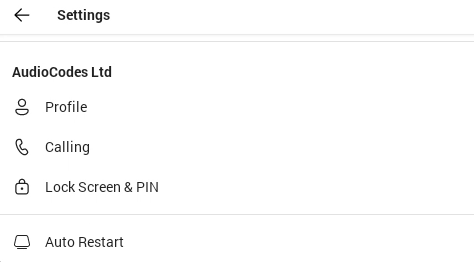
Use this table as reference:
Idle Screen Description
|
Item |
Description |
|||||||||||||||||||||||||||||||||||||||||||||
|---|---|---|---|---|---|---|---|---|---|---|---|---|---|---|---|---|---|---|---|---|---|---|---|---|---|---|---|---|---|---|---|---|---|---|---|---|---|---|---|---|---|---|---|---|---|---|
|
Profile |
Opens the user's email address and photo / avatar picture. |
|||||||||||||||||||||||||||||||||||||||||||||
|
Calling |
Opens the Calls screen.
|
|||||||||||||||||||||||||||||||||||||||||||||
|
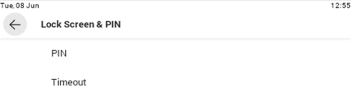
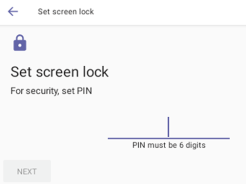
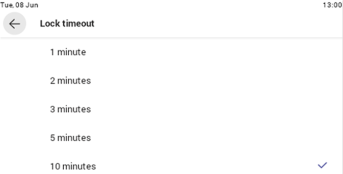
Lock Screen & PIN |
You can lock your phone as a security precaution.
Configure a lock option before attempting to lock the phone.
If a lock option isn't configured, the lock action will not work. To unlock a locked phone, see Unlock. |
|||||||||||||||||||||||||||||||||||||||||||||
|
What's new |
Links to the 'What's new' page of Microsoft Teams devices. |
|||||||||||||||||||||||||||||||||||||||||||||
|
About |
Opens the About screen of Microsoft Teams. |
|||||||||||||||||||||||||||||||||||||||||||||
|
Sign out |
Lets you sign out of the phone application as one user and optionally sign in again as another user. See Sign Out for detailed information. |
|||||||||||||||||||||||||||||||||||||||||||||
|
Device Settings |
Opens the [Device] Settings screen. See Configure Device Settings for detailed information. |